A quick post to let you all know that Paul Yuknewicz, Senior Program Manager on the VB Team, and myself will be presenting a webcast on upgrading VB6.0 applications to Visual Studio 2010, this Thursday at 9am PST. Here are some details on the event:
Title: MSDN Webcast: Visual Studio 2010 Ecosystem Series: Upgrading Applications from Visual Basic 6 to Visual Studio 2010 (Level 200)
Summary: Attend this webcast to discover how to use the latest version of ArtinSoft's Visual Basic Upgrade Companion (VBUC) to easily migrate applications developed in Microsoft Visual Basic 6 to both Microsoft Visual Basic .NET and C# using the Microsoft Visual Studio 2010 development system. Now that the Upgrade Wizard no longer ships with Visual Studio, the VBUC provides a more powerful and flexible alternative to cost-effectively upgrade your applications to .NET, take advantage of the latest technology, and streamline your development process.
Event link
Today, as part of the Visual Studio 2010 launch, Microsoft published a video of my coworker, Esteban Brenes, doing a brief demo of the latest beta of the Visual Basic Upgrade Companion 4.0. In this video, version 4.0 of the VBUC is used to generate code that works correctly with Visual Studio 2010. This is part of the VSIP Partners CAN DO! series of videos, which can be seen in this link.
Watch the video: VSIP Partners CAN DO! | ArtinSoft Visual Basic Upgrade Companion
We are very happy to announce the Visual Basic Upgrade Companion 4.0 Beta. You can now download a trial from the Trial Request page. While we complete beta testing, we’ll have both version 3.0 (current release version) and the 4.0 Beta available for download. If you have the chance, we would really appreciate it if you could download the beta, and send us any feedback either through ArtinSoft’s regular support email (support@artinsoft.com) or through my blog Contact Form.
This new version contains a large number of improvements over version 3.0, including:
- Increased productivity for migration projects, with features such as improved conversion of ByRef/ByVal parameters (specially when working with Windows APIs), TypeName/TypeOf support, improved default property conversion, generate code to explicitly release COM objects when required, and hundreds of smaller enhancements and bug fixes that greatly improve the conversion of VB6.0 code.
- Improved the user experience by adding localization/internationalization for German and Japanese and completely redesigned the installation and license process. Installing a license is now a straightforward process (no more copying files!!), and it is now possible to install and execute the VBUC on both 32- and 64-bit versions of Windows Vista and Windows 7, as well as 32-bit Windows XP. The installation requirements were also greatly simplified, so you don’t need Visual Studio installed to install the VBUC (though it is still recommended).
You can now also select the target version of Visual Studio to generate the appropriate Solution file (*.sln). The VBUC can generate Visual Studio Solutions for version 2005, 2008 and 2010.
- Enhanced Grid migration, by mapping the Microsoft Flexgrid and APEX/ComponentOne TrueDBGrid to a grid that extends the native .NET DataGridView. It will no longer be required to purchase a third-party grid solution when moving from these grid to .NET if you wish to move to 100% native .NET code without using COM Interop.
- Improved assessment capabilities, by improving the accuracy of the VBUC Assessment Mode and making additional changes so members without specific mappings are tagged with an EWIs – in the past only members that were explicitly tagged as “Not Mapped” had an EWI.
You can read more details on the new features of version 4.0 in this page: What’s new in VBUC 4.0? Make sure you try out these new features by downloading a trial.
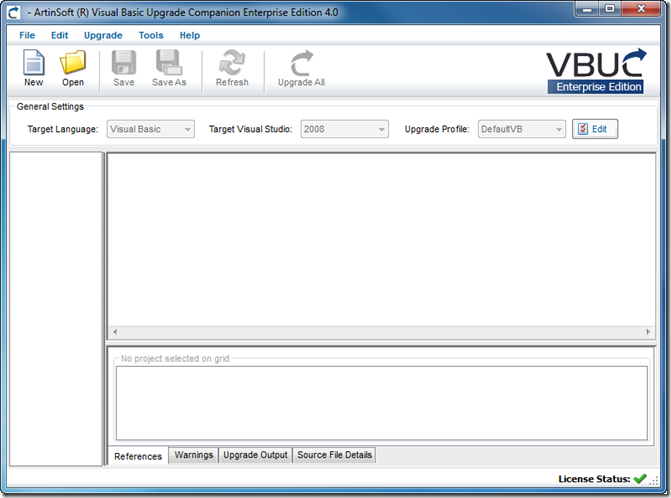 Visual Basic Upgrade Companion 4.0 User Interface. You can now select the target version of Visual Studio,
and also note the license icon at the bottom of the window.
In it March issue, Visual Studio Magazine published an in-depth article about legacy migrations called “Unlocking Legacy Code”. This article talks about the challenges faced by companies migrating from Visual Basic 6.0 to .NET, the drivers behind these migrations and the pros and cons of using an automated migration solution.
The article uses BEMAS Software as a case study for successful migration products. I am incredibly happy they are doing as well as they are with the conversion – they are using our tools, and I visited BEMAS about a year and a half ago to train them on the VBUC and help them plan the migration project. I remember they had a lot of conditional statements (by “a lot”, we are talking thousands of different combinations), as mentioned in the article:
"We also ran into some issues with the conversion tool because early on in the VB code we did a lot of #ifs, which means that the code acts differently depending on how you compile it," Pownall adds. BEMAS worked with ArtinSoft so that VBUC would recognize those instances and convert the code correctly.
It was quite a challenge to get it to convert, since the default behavior of the VBUC is to convert the code inside the conditional statement that evaluates to “TRUE”. Commenting out the conditionals wasn’t going to work either, since that would cause multiple variable declarations and other semantic errors that caused issues during the migration of this particular code. In the end we worked together with BEMAS, and with heavy involvement of the VBUC development team, we managed to modify the tool enough to get the code converted correctly.
Another very interesting item mentioned by Steve Pownall in the article, that I want to talk about some more, is the fact that even though the code came through very cleanly, it didn’t have the .NET architecture they were aiming for so they had to “The dev team had to massage or opted to rewrite the rest of the codebase manually in C# and .NET 3.5 using VS2008.”. This is a very important point, since the overall architecture of the code will remain as it was in VB6.0. The migration, however, gets you quickly to a stable .NET codebase that you can then rework to make it take advantage of the latest features of the .NET Framework. In our experience, this path (migrate, then enhance) is the one with the lowest risk, and it allows you to reduce the time to market for your applications by a wide margin. This is important to keep in mind, since we, as developers, always want to improve the code base – it is part of our professional formation, and I would say, part of our nature – but we sometimes fail to grasp the additional risk this implies. The migration is very controlled process, that gets you predictable results in a short time. Enhancing the application after the migration may seem like duplicating work (and indeed, there are enhancements that can be done during the migration process) but it guarantees that you will get a .NET in the allocated timeframe and budget, not to mention the cost advantage.
Read the complete article, Unlocking Legacy Code at Visual Studio Magazine.
One very common requirement for migration projects is to adapt certain error handling patterns used in a customer’s Visual Basic 6.0 code to the structured error handling provided by .NET, cleaning up the code, improving its maintainability, and, whenever possible, complying with .NET best practices.
The VBUC already converts several commonly used error handling patterns, such as the ones described in this old post. There are, however, situations where the VBUC is not able to recognize a pattern. these usually involve Goto statements, On Error Resume Next, Resume Next or some other construct usually associated with “spaghetti code”. When one of these patterns is encountered, the VBUC does a very basic transformation and generates an EWI so it can be cleaned up through manual intervention later on, such as in the following example:
|
Visual Basic 6.0 Code |
.NET Code |
Private Function <NAME>(<PARAMS>) As <TYPE>
  Const MethodName As String = "<NAME>"
       On Error GoTo ErrorLabel
       <STATEMENTS 1>
       On Error GoTo <LABEL>
       <STATEMENTS 2>
  CleanUp:
       <STATEMENTS 3>
       Exit Function

  <LABEL>:
       <STATEMENTS 4>
       LogError(MethodName)
       Err.Raise 16, , MethodName

   ErrorLabel:
       <STATEMENTS 5>
       LogError(MethodName)
       Err.Raise Err.Number, , MethodName

End Function
|
private <TYPE> <NAME>()
{

const string MethodName = "<NAME>";
//UPGRADE_TODO: (1065)
         Error handling statement
         (On Error Goto) could not be converted.
         More Information:
         http://www.vbtonet.com/ewis/ewi1065.aspx
   NotUpgradedHelper.NotifyNotUpgradedElement(
      "On Error Goto Label (ErrorLabel)");

<STATEMENTS 1>
try
{
       <STATEMENTS 2>
       <STATEMENTS 3>
       return result;
}
catch (Exception ex)
{
       <STATEMENTS 4>
       LogError(MethodName);
       throw new System.Exception(
              ((int) 16).ToString() +
              ", " + String.Empty +
              ", " + MethodName);

ErrorLabel:
       <STATEMENTS 5>
       //UPGRADE_WARNING: (2081)
         Err.Number has a new behavior.
         More Information:
         http://www.vbtonet.com/ewis/ewi2081.aspx
       LogError(MethodName);
       throw new System.Exception(
              Information.Err().Number.ToString() +
              ", " + String.Empty +
              ", " + MethodName);
       return result;
}
} |
Most of the time it is possible to generate a solution that will correctly convert the error handling pattern, maintaining functional equivalence and meeting any additional coding guidelines from our customers. For the previous example, The VBUC can be customized so the generated code looks as follows:
try
{
       try
       {
              <STATEMENTS 1>
       }
       catch (Exception ex){
              <STATEMENTS 5>
              throw;
       }
       try
       {
              <STATEMENTS 2>
       }
       catch (Exception <LABEL>Ex)
       {
              <STATEMENTS 4>
              <LABEL>Ex.Data.Add("ERROR",16);
              throw;
       }
}
finally
{
       <STATEMENTS 3>
}
This example makes some assumptions on the nature of the code and on the intention of the original VB6.0 developer, in particular:
- Errors raised by <STATEMENTS 1> should be handled by <STATEMENTS 5>
- Errors raised by <STATEMENTS 2> should be handled by <STATEMENTS 4>
- <STATEMENTS 3> is cleanup code that should always be executed
- The Exception needs to be thrown again without loosing any information
This is just an example, but the intention is to show what type of customizations can be done. The VBUC transformation engine is very powerful, and, as long as a pattern can be identified, can help you automate the solution to most VB6.0 problems.
Back when it was first announced I made a couple of posts about Windows 7 XP Mode (available here and here). Now that I’ve been using almost every day for the past few months, I wanted to revisit the topic and write about my hands-on impressions. In this post I’ll show how applications that run under XP Mode integrate with the regular Windows 7 environment.
The integration features of XP Mode work really well, for the most part. Applications installed in the Virtual Machine appear right there on the Start Menu:
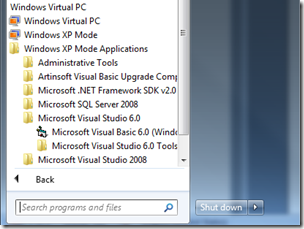
The Start menu gains a “Windows XP Mode Applications” folder under “Windows Virtual PC”,
which holds all apps installed in the XP Mode virtual machine (click picture to enlarge)
And even show up when searching, which is extremely convenient.
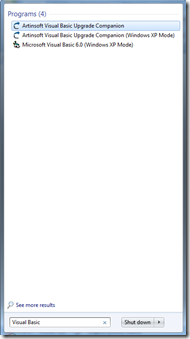
The Quick Search functionality of the Start menu covers
XP Mode Applications. (click picture to enlarge)
When you launch applications, Windows starts up the XP Mode virtual machine behind the scenes, showing a progress toolbar instead of XP’s boot up sequence.
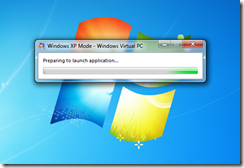
Windows XP Mode virtual machine startup. Notice it is running under
Windows Virtual PC. (click picture to enlarge)
Once the application starts up, you’ll notice it is running on XP Mode since the UI uses XP’s windows, instead of Aero:
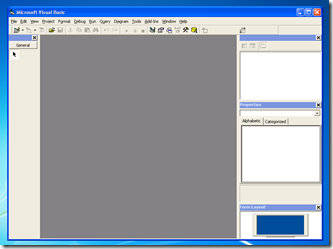
Visual Basic 6.0 on XP mode, complete with default Windows XP “Luna” theme. (click picture to enlarge)
The following screenshot shows this more clearly, by contrasting the Visual Basic 6.0 IDE running under XP Mode and Visual Studio 2008 running directly on the Windows 7 desktop.:
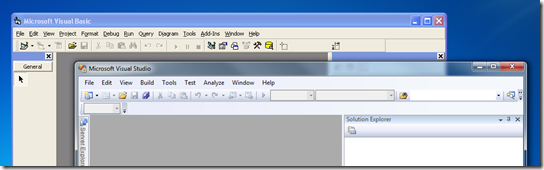
Visual Basic 6.0 on XP mode (Luna theme) vs. Visual Studio 2008
on Windows 7 (Aero Glass theme). (click picture to enlarge)
Another VERY NICE feature is that the "My Documents” folder is transparently mapped to Windows 7’s “Documents” library:
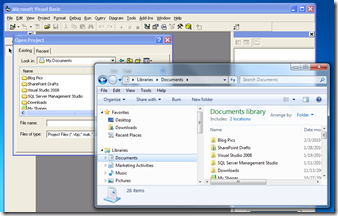
Visual Basic 6.0 on XP mode Open Project dialog showing the My Documents folder.
Notice the same contents on the Documents library in Windows 7. (click picture to enlarge)
These integration features of XP Mode make life much easier for legacy applications, but it is far from perfect. In the next post I’ll mention the annoyances I’ve run into while working with XP Mode.
A quick post to let you all know that the recording of last week’s webcast I did on compatibility options for Windows 7 is now online. In this webcast I briefly covered different compatibility options available for Windows 7, mentioning things like virtualization (such as XP Mode) and Remediation, and the focusing on the benefits of using automated migration tools to get the application off VB6.0 and into .NET so it can take advantage of the new APIs available in Windows 7 (Taskbar API, touch API, etc).
See the recording here
Next Monday, August 17, I will be presenting a Webinar along with Microsoft for the Latin America region on how you can use several options to get your VB6.0 applications to run on Windows 7 AND get the Windows 7 logo. The webinar will be in Spanish, and covers the business reasons for the migration, the benefits of using in the .NET Framework, alternatives, and information (+demo) of the VBUC.
Here’s the link so you can register for the Webinar:
Actualiza tus apliaciones y consigue el logo de Windows 7
Fecha: 17 de agosto 05:00 p.m. Ciudad de México
Register for the Webinar
A quick post to let everybody know that you can now follow us on twitter. To do so, you just need to follow @artinsoft, or add “artinsoft” in your favorite Twitter client. In this account we are posting news and articles related to software migrations, and you can also use it to communicate directly with us in case you have any question or want to give us any feedback.
ArtinSoft Twitter page
We just posted a new case study about how an Italian company, Wolters Kluwer Italia, managed to successfully migrate its flagship Accounting and Financial services product from VB6.0 to Visual Basic .NET, using a customized version of the Visual Basic Upgrade Companion.
This Wolters Kluwer is a case where the VBUC customizations performed by ArtinSoft helped them achieve two very important goals: first, to radically speed up the overall migration project, by having the VBUC do particular transformations that otherwise would have required manual changes, and second, to meet very specific requirements for the migration, such as using having the VBUC generate .NET code that used their own controls, do additional refactoring to the code, and other architectural customizations made possible by the VBUC engine.
Read the case study: Wolters Kluwer licenses the Visual Basic Upgrade Companion to quickly and cost-effectively modernize its flagship Accounting/Fiscal software product